Fix a SIM that won’t connect
Most connection problems come from the SIM’s status, a limit, or a device setting. Work through these checks in order; stop when the device connects.
Before you start
- To change a SIM’s status or reset it, you’re a Company administrator, or an Operator with the Change SIM status permission.
- To send a test SMS, an Operator needs the Send SMS permission.
- To check network coverage, an Operator needs the See pricing info & data packages permission.
Check the SIM in Terminal
- Go to SIMs and select the SIM’s ICCID to open its details page.
- Look at SIM status. The SIM can connect only in Live, Live-ready or Test. If it’s in Shipping or Offline, change it to Live. See Change a SIM’s status.
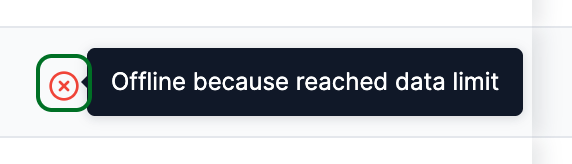
- Look for an alert icon next to the SIM. If it says Offline because reached data limit, follow Bring a SIM back online after it reached its data limit.
- If it says Offline because IMEI changed, the SIM is in a different device than the one it’s locked to. Turn off IMEI lock or update the attached IMEI in the SIM’s settings, then change the status to Live.
- If it says Last request is still being processed or In the middle of an eSIM transaction, wait until Terminal finishes, then check again.
Reset the SIM
A reset makes the telecom refresh the SIM’s connection. You can reset only a SIM in Live.
- On the SIM’s details page, select Reset SIM.
- Select Reset SIM again to confirm.
- When the reset is done, restart the device.
The reset disconnects the SIM from the network for about 10 minutes. See Reset a SIM.
Check the device
- Check that the SIM sits correctly in the device and that the device can read its ICCID.
- Turn on data roaming.
- Set network selection to automatic.
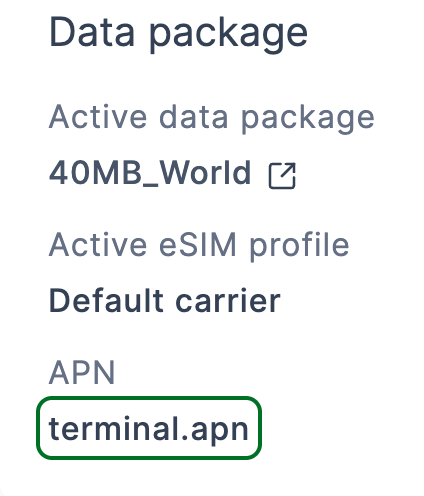
- Check that the device uses the APN shown on the SIM’s Data package & eSIM tab in Terminal.
- Restart the device.
- Check that the device supports a network technology, such as 4G, NB-IoT or Cat-M1, that your SIM can use where the device is. See Check which networks a data package covers.
- If the device worked before, check what changed, for example a setting or a firmware update.
- Check that the device registers on a network and can start a data session.
Weak signal can also stop a device from connecting, for example in a basement, a warehouse or a remote place.
Test with an SMS
An SMS test shows whether the device reaches a network at all. Not every SIM supports SMS from Terminal.
- Send an SMS to the SIM from Terminal. See Send an SMS to a SIM.
- Check whether the device receives it.
If the SMS arrives, the device is on a network. Check the data settings again: the APN, mobile data and data roaming. If the SMS doesn’t arrive, that alone doesn’t show what’s wrong.
If the device still can’t connect
- If you can, try the SIM in another device.
- Contact 1oT support with the ICCID, what you checked and what you saw. See Contact support.