Label SIMs
Add labels to SIMs, for example a customer name or a site, so you can find them and act on them together.
Before you start
- You’re a Company administrator, or an Operator with the Edit SIM name, group, labels permission.
- Your company has the Productivity Toolkit app. Without it, you can’t select SIMs. See Turn on an app in the App Store.
Why organise your SIMs
With hundreds of SIMs, you rarely want to act on one SIM at a time. You want all SIMs in one customer’s devices, one country or one product line. If those SIMs share a label, you can:
- find them in seconds, instead of pasting ICCIDs
- select them all and change their status, limits or data package in one go. See Change many SIMs at once.
- run a workflow on them, including SIMs you add the label to later
Label SIMs when they arrive, before the devices go out. It’s much harder to sort SIMs once they’re in the field.
Labels, groups or custom fields?
| Type | Per SIM | Use it for | Example |
|---|---|---|---|
| Label | Any number | Sorting that overlaps | customer-acme, germany, pilot |
| Group | One | The main split of your fleet | Temperature sensors, Trackers |
| Custom field | One value per field | Your own data | Asset ID: 40021 |
A good start is one group per product or device type, and labels for everything else.
See Group SIMs and Add custom fields to SIMs.
Add labels to many SIMs
- Go to SIMs.
- Select the SIMs.
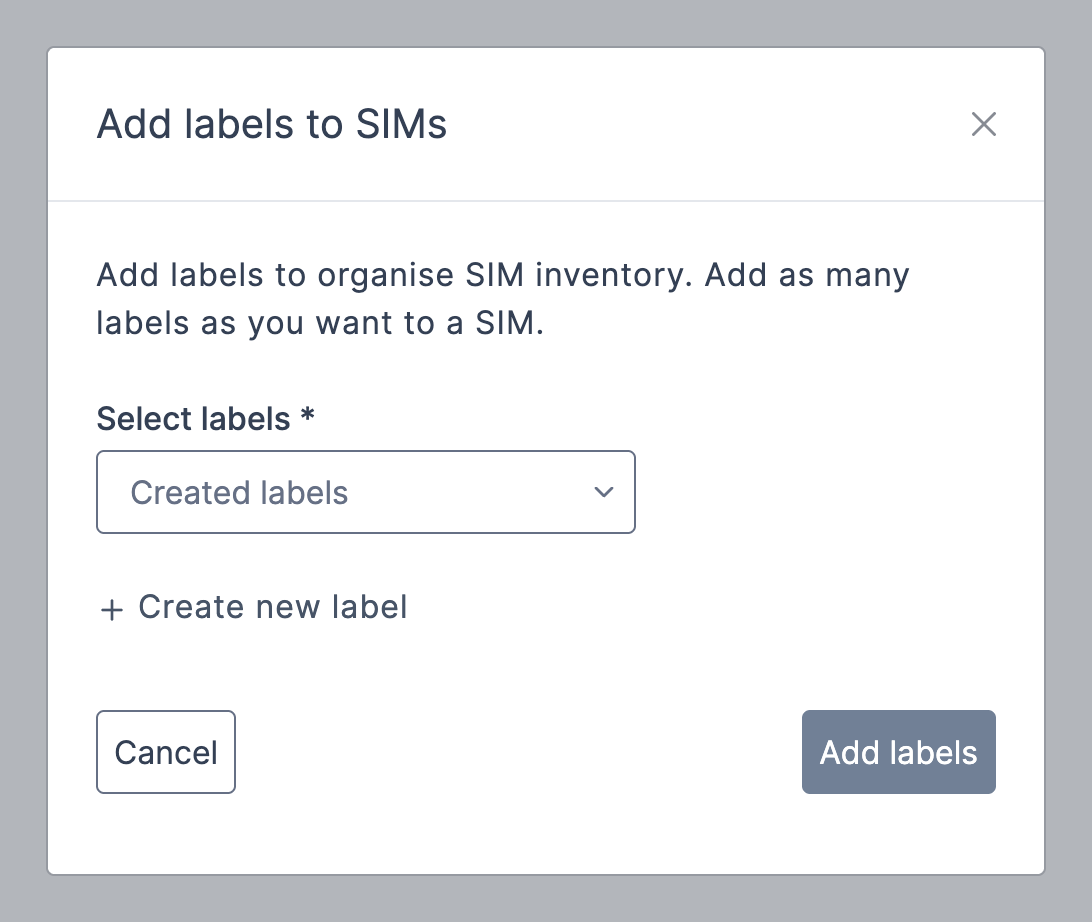
- Select the ⋯ button, then Add labels.
- Choose existing labels. To create a new label, type its name and press Space.
- Confirm.
Terminal shows Labels updated successfully.
To label one SIM, select only that SIM.
Remove labels
- Go to SIMs.
- Select the SIMs.
- Select the ⋯ button, then Remove labels.
- Choose the labels to remove and confirm.
Rename a label
You can’t edit a label. Instead:
- Filter the SIMs list by the old label and select all the SIMs.
- Add the new label to them. See Add labels to many SIMs.
- With the same SIMs selected, remove the old label.
Use your labels
- Find SIMs: search by Label, or select Add filter and filter by Label. See Find and filter SIMs.
- Change many SIMs at once: filter by a label, select all the SIMs, then choose the action. See Change many SIMs at once.
- Run a workflow: in Step 2 of a workflow, choose Labels. The workflow then also covers SIMs that get the label later. A workflow can also add labels for you. See Create a workflow.