Set data and SMS limits
Set a monthly data limit or SMS limit on a SIM, so a faulty device can’t run up costs. Both limits start again at zero on the first day of each month.
Before you start
- You’re a Company administrator, or an Operator with the Set data & SMS limit permission.
- If you use a Sub-client’s Terminal, the Sub-client needs Sub-client can change SIM limits.
- To set limits for many SIMs at once, your company needs the Productivity Toolkit app.
How the limits work
- Data limit is in MB per calendar month. When the SIM reaches it, Terminal changes the SIM’s status to Offline. On the first day of next month, Terminal puts it back to Live.
- SMS limit counts only SMS sent from the device, per calendar month. When the SIM reaches it, the SIM can’t send SMS, but it stays Live and keeps its data connection.
- Every SIM has both limits. You can change their values but not turn them off.
- Terminal gets usage from the telecom with a delay. A SIM can go over its data limit before Terminal puts it Offline, especially during a long data session.
Set limits for one SIM
- Go to SIMs and select the SIM’s ICCID to open its details page.
- Open the SIM configuration tab.
- Under Usage limits, in Set monthly data usage limit, enter the limit in MB.
- In Set monthly SMS limit, enter the number of SMS.
Terminal saves each value when you leave the field. The change takes a couple of minutes.
You can also edit the value in the Data limit and SMS limit columns on the SIMs page.
Set limits for many SIMs at once
- Go to SIMs.
- Select the checkbox next to each SIM you want to change.
- Select the ⋯ button, then Set data limit or Set SMS limit.
- Enter the new limit.
- Select Set data limit or Set SMS limit.
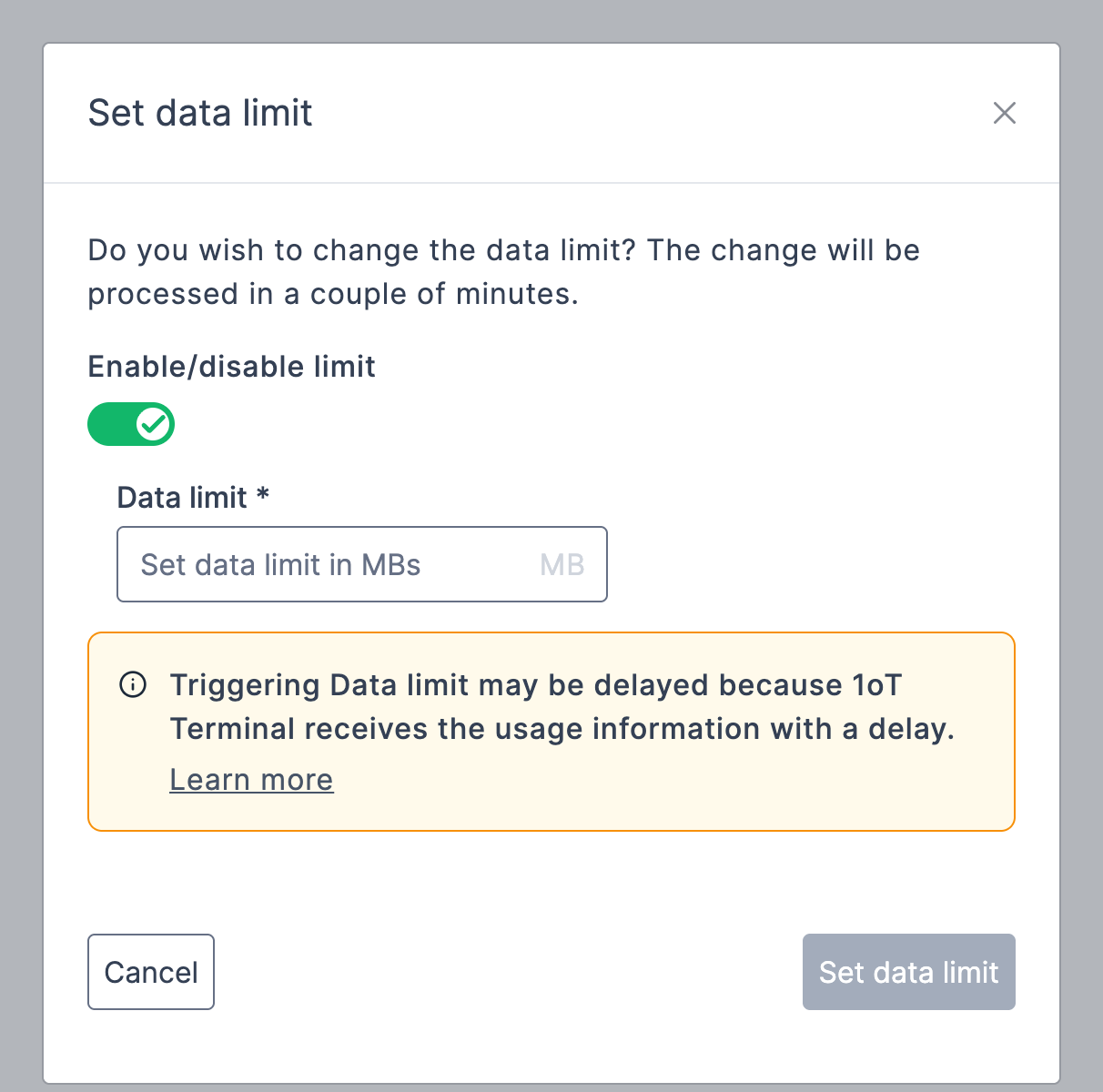
The new limit replaces the old one on every SIM you selected.