Review Alerts
See every alert Terminal raised about your SIMs, such as a SIM using all of its data package, a workflow running, or Intelligent Connectivity spotting unusual use.
See your alerts
- Select the bell icon in the top bar.
Alerts & notifications lists each alert with the Affected SIM(s), a Description, the Type and the Time. Newest come first. The page starts with this month’s alerts.
The Type is one of:
- Alert: Terminal’s own alerts, for example SMS limit reached or a data package used up.
- Workflow automation: a workflow you created ran. See Create a workflow.
- Intelligent connectivity: the Intelligent Connectivity app found unusual use, for example a SIM using far more data than last month. See Spot unusual SIM behaviour.
Select a SIM’s number to open its details page.
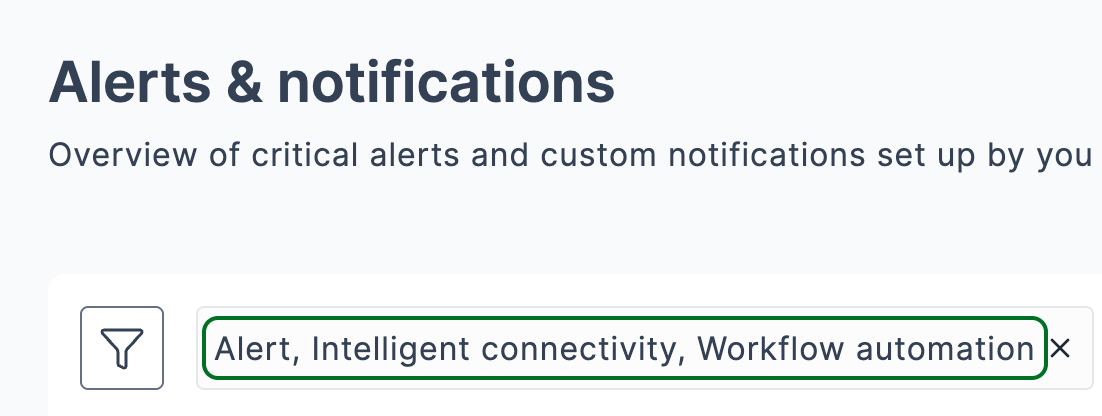
Filter alerts
- On Alerts & notifications, select the filter button.
- Filter by ICCID, Type, Alert description or Date range.
- Select Apply filters.
Export alerts
- Filter the alerts, if you want only some.
- Select Export XLSX.
Choose what you see
- On Alerts & notifications, select Change preferences.
- Under Main SIM identifier, choose how SIMs are shown, for example MSISDN or ICCID.
- Choose whether to Show notifications triggered by Workflow automation and Show anomalies detected by Intelligent connectivity. Alerts affecting SIMs always show.
- Select Save changes.
These preferences apply only to you. Other users keep their own.
If you want alerts by email
Alerts show only in Terminal unless you set up a workflow with an email. See Get an email when a SIM goes offline or reaches a limit.