Get an email when a SIM goes offline or reaches a limit
Get an email when a SIM goes Offline, or when it has used a share of its data or SMS limit. You set this up as a workflow.
Before you start
- Your company has the Workflow Automation app. See Turn on an app in the App Store.
- The SIMs have a data limit or SMS limit, if you want an email about limits. See Set data and SMS limits.
- You’re a Company administrator, or an Operator whose permissions allow it.
Choose what triggers the email
- Go to Apps > Workflow automation.
- Select Create new workflow.
- Under Step 1 - Select trigger, choose one:
- To hear when a SIM goes Offline: select Monitor SIMs, then SIM status is changed. In Select one or more initial statuses, select Select all. In Select one or more final statuses, select OFFLINE.
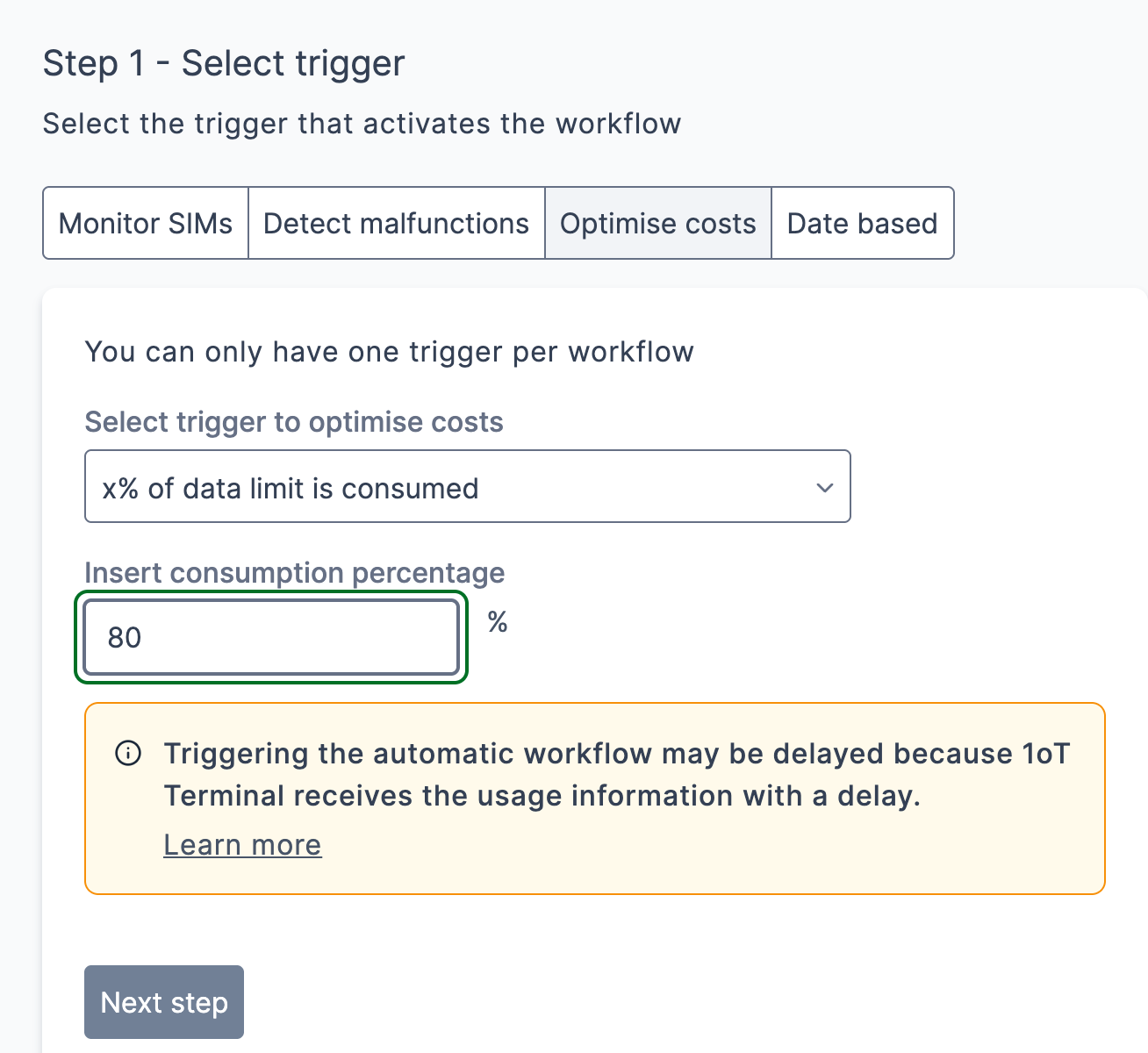
- To hear when a SIM nears its data limit: select Optimise costs, then x% of data limit is consumed. In Insert consumption percentage, enter a number, for example 80.
- To hear when a SIM nears its SMS limit: select Optimise costs, then x% of SMS limit is consumed, and enter the percentage.
- Select Next step.
A SIM that reaches 100% of its data limit goes Offline. To hear about both, either set the percentage below 100 or use the SIM status is changed trigger.
Choose the SIMs
- Under Step 2 - Select SIMs, choose how to pick them: File upload, SIM, Groups, Labels or Data package.
- To include every SIM, open SIM and select Select all [number] SIMs.
- Select Continue to next step.
Add the email
- Under Step 3 - Select action, select Skip automation. You only want an email, so the workflow doesn’t need to change anything.
- Under Step 4 - Select a notification channel, select Receive an email.
- Enter the email addresses, separated by commas, or select Send email to all company users.
- Select Next step.
Name and create the workflow
- Under Step 5 - Final confirmation, check the trigger, the number of SIMs and the email addresses.
- Under Name the workflow, enter a name, for example “SIM went offline”. If you leave it, Terminal uses a placeholder name.
- Select Create workflow.
From now on, Terminal emails the addresses each time a SIM in the workflow meets the trigger. You also see each one under Alerts (the bell icon).
Terminal gets usage from the telecom with a delay, so a limit email can arrive some time after the SIM crossed the limit.