Create and manage API keys
Create an API key for each system that connects to the 1oT Terminal API, and delete keys you no longer need.
Before you start
- Your company has the API app. See Turn on an app in the App Store.
Create an API key
- Go to Apps > API. The page is called API keys.
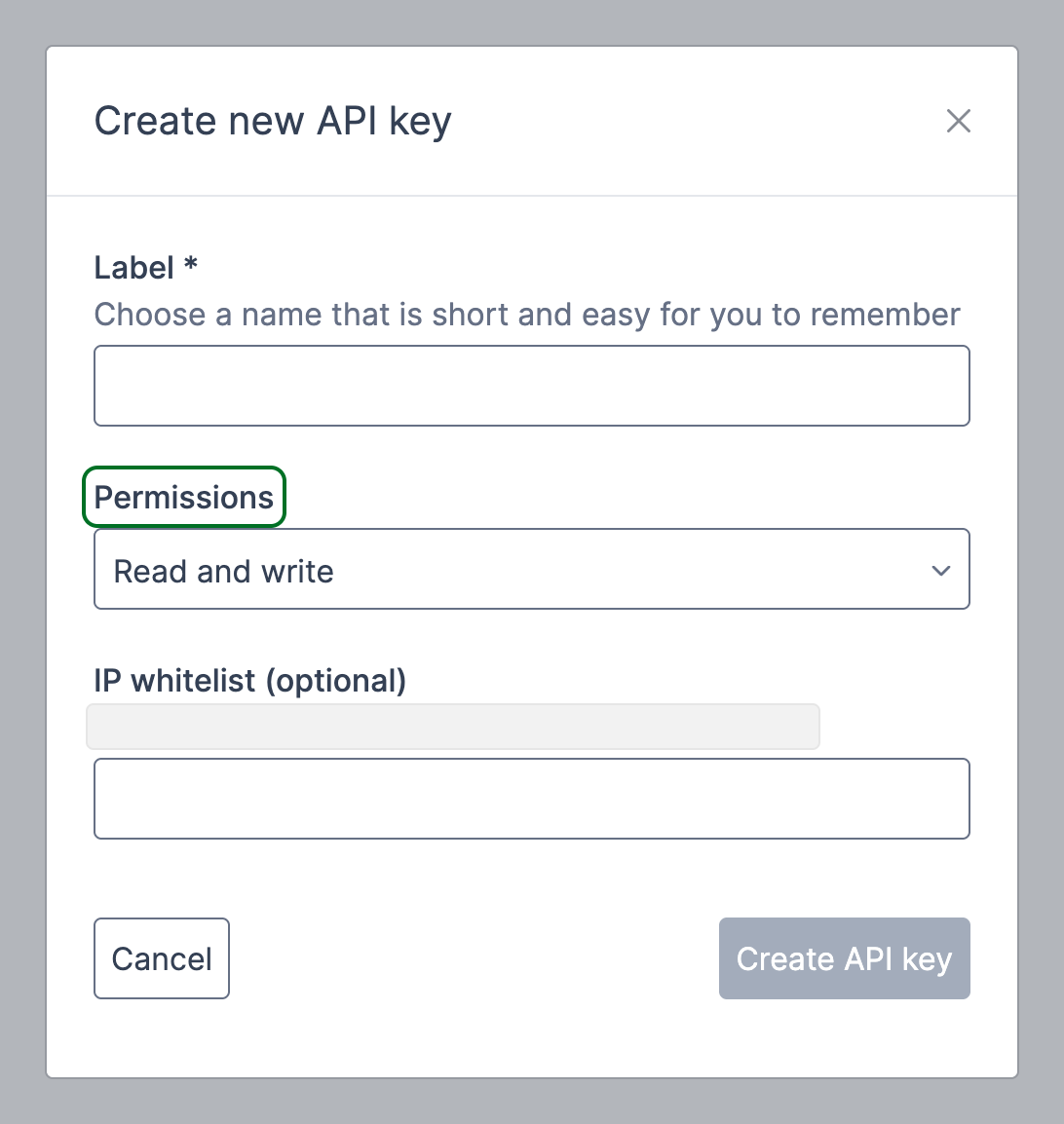
- Select + Create API key.
- Under Label, enter a short name that tells you which system uses the key.
- Under Permissions, choose:
- Read: the key can only read data.
- Read and write: the key can also change SIMs, for example their status or limits.
- Optional: under IP whitelist (optional), enter the IPv4 addresses allowed to use the key, separated by commas. Terminal shows your current IP below the field.
- Select Create API key.
Terminal shows the key’s username and password. Copy the password now and store it safely. Terminal shows it only once. If you lose it, create a new key.
The number of API keys per company is limited. Terminal tells you when you reach the limit.
See your API keys
The API keys page lists each key’s Label, Username, Generation date and Permission.
Change an API key
- On the key’s row, open the menu and select Edit API key.
- Change the label, permissions or IP whitelist, and save.
Delete an API key
- On the key’s row, open the menu and select Delete API key.
- Confirm.
Systems using that key can no longer connect.
Find the API documentation
- Go to Apps > API.
- Select View documentation.
Terminal opens 1oT Terminal API, the full list of requests, with their parameters and example responses. To load the requests into your own tools, select /swagger.json at the top of the page. It’s an OpenAPI file that tools such as Postman can import.