Send an SMS to a SIM
Send an SMS from Terminal to the device a SIM is in, for example to send it a configuration command.
Before you start
- You’re a Company administrator, or an Operator with the Send SMS permission.
- The SIM’s status is Test, Live-ready or Live. Terminal can’t send SMS to SIMs in Shipping, Offline or Closed.
- Not every SIM supports SMS from Terminal. If it doesn’t, the dialog says Sending SMS from 1oT Terminal is not available for the selected SIM.
- To send to many SIMs at once, your company needs the Productivity Toolkit app.
Send an SMS to one SIM
- Go to SIMs and select the SIM’s ICCID to open its details page.
- Select Send SMS.
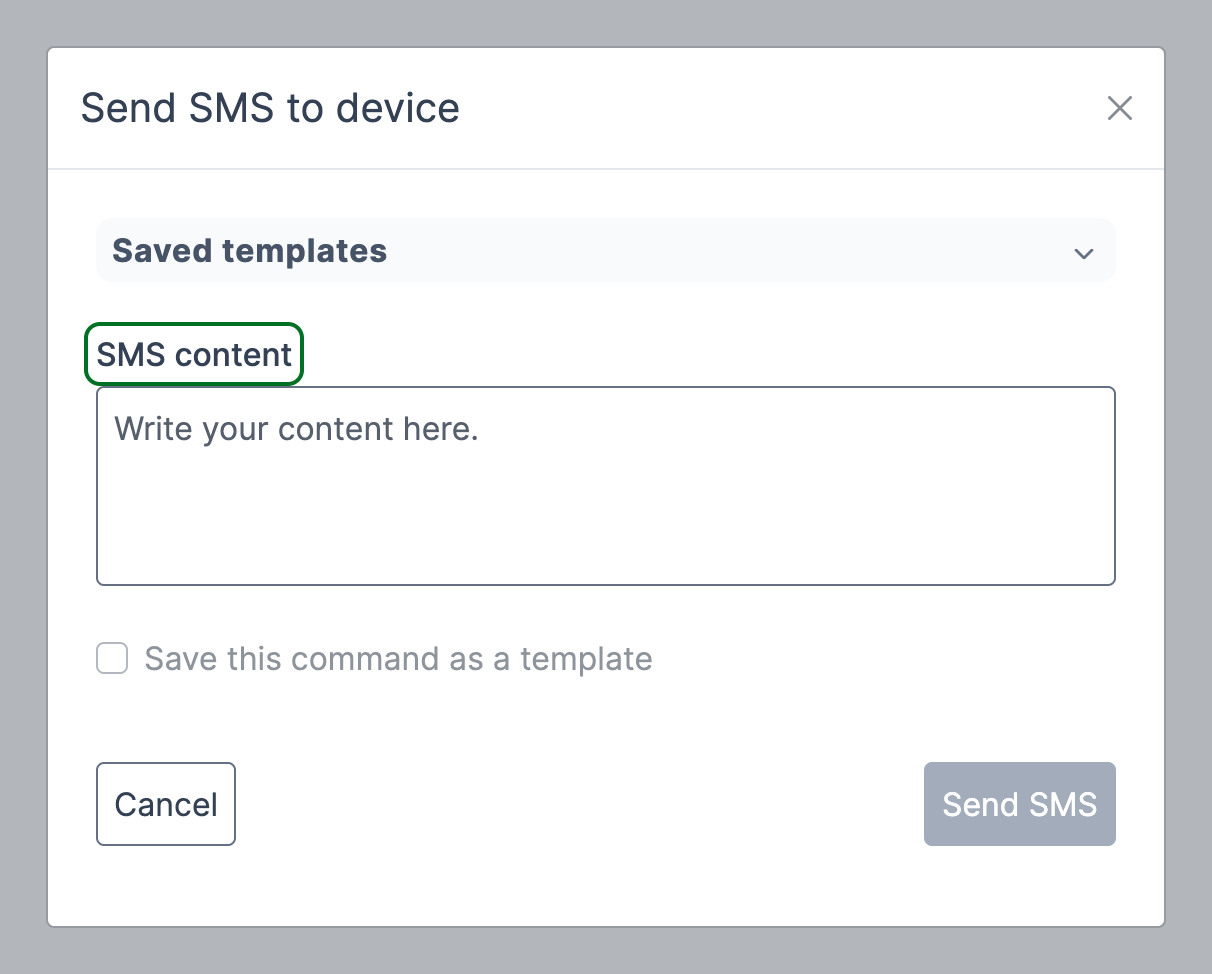
- In SMS content, write the message.
- Select Send SMS.
Terminal shows Your SMS has been successfully sent. and passes the SMS to the telecom, which delivers it to the device.
Send an SMS to many SIMs
- Go to SIMs.
- Select the checkbox next to each SIM.
- Select Send SMS.
- In SMS content, write the message.
- Select Send SMS.
If some of the SIMs can’t receive SMS, Terminal says how many and asks whether to send to the others. Select Send SMS again to send only to the SIMs that can receive it.
Save the message as a template
If you send the same command often, save it.
- In the Send SMS to device dialog, write the message.
- Select Save this command as a template.
- In Name the template, enter a name.
- Select Send SMS.
Next time, open Saved templates in the dialog and choose the template.
Check that the SMS reached the device
- Open the SIM’s details page, then the Usage inspection tab.
- In Network sessions, filter Session type by SMS to device.
Each SMS shows its time and its text in SMS content.
Every SMS sent from Terminal is also in the Event log. See Check who changed what in the Event log.