Change many SIMs at once
Change many SIMs in one go: select them in the SIMs list, or upload a spreadsheet with the new values.
Before you start
- Your company has the Productivity Toolkit app. Without it, the SIMs table has no checkboxes. See Turn on an app in the App Store.
- You have the permission for the change you want to make, for example Change SIM status or Set data & SMS limit. A Company administrator can make every change. See Set a user’s permissions.
Select SIMs and change them
- Go to SIMs.
- Find the SIMs, for example with a filter. See Find and filter SIMs.
- Select the checkbox next to each SIM. To select every SIM on the page, select the checkbox in the table header.
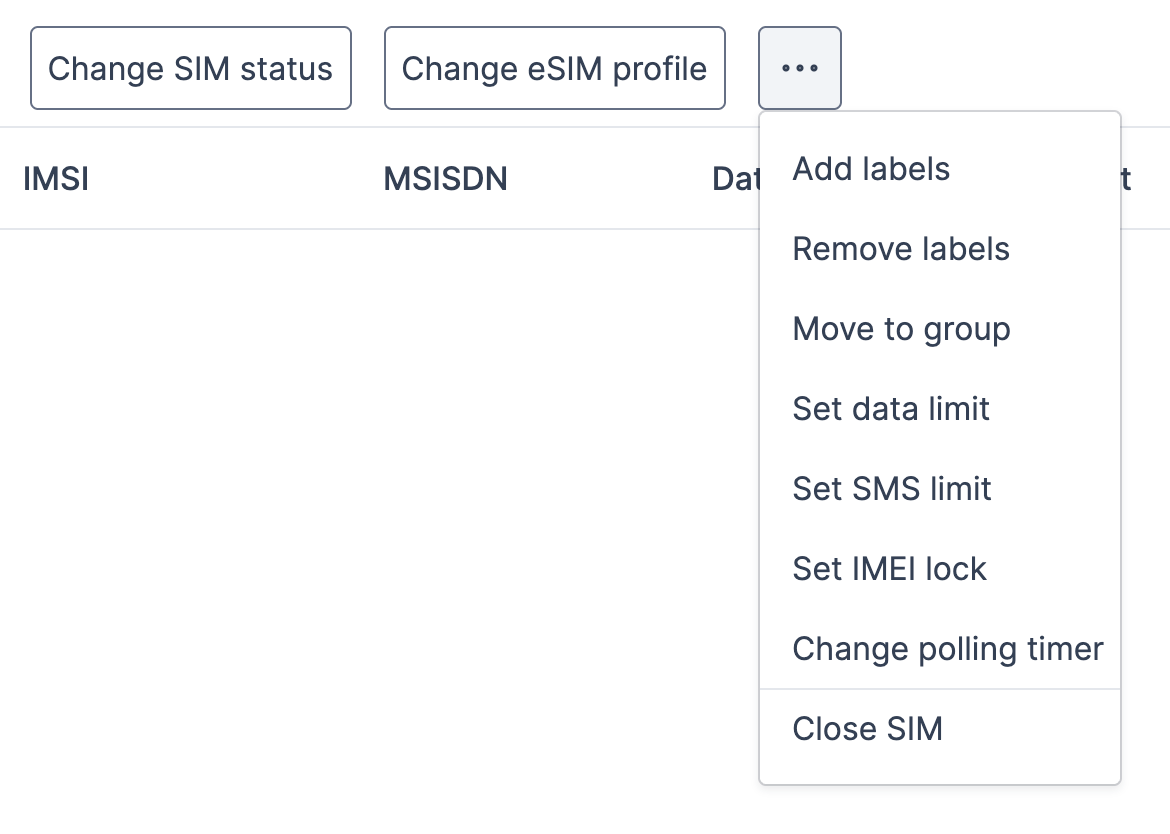
- Choose the change from the bar above the table:
- Send SMS
- Reset SIMs
- Change SIM status
- Change eSIM profile
- Under ⋯: Add labels, Remove labels, Move to group, Set data limit, Set SMS limit, Set IMEI lock, Change polling timer or Close SIM
- Fill in the dialog and confirm.
Terminal checks every SIM first. If some SIMs can’t take the change, Terminal tells you how many and lets you go on with the rest.
To see how a change is going, open the Event log and select See more info on the change. Terminal shows the progress of each SIM. See Check who changed what in the Event log.
Upload changes in a spreadsheet
Use this when each SIM needs a different value, for example a different name or data limit per SIM.
- Go to SIMs.
- Select the download button above the table to export the SIMs you want to change.
- Open the file and change the values. Keep the ICCID, EID, IMSI or MSISDN column, so Terminal knows which SIM each row is.
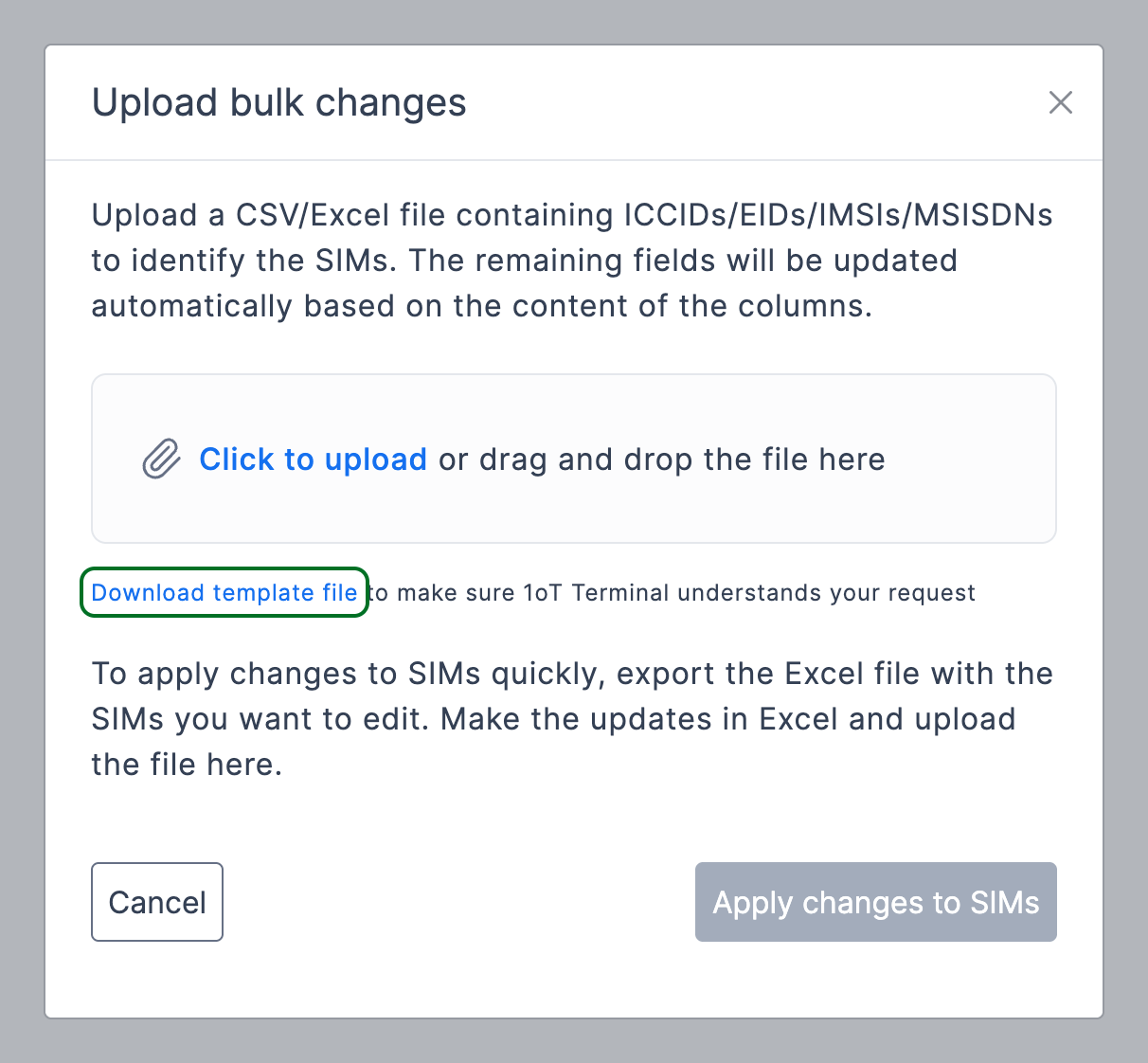
- In Terminal, select the upload button next to Add filter, then Upload changes with CSV/Excel file.
- Upload the file.
- Select Apply changes to SIMs.
Terminal finds each SIM by its ICCID, EID, IMSI or MSISDN and updates the other columns in the file. For the right format, select Download template file in the upload dialog.