Change a SIM’s status
Change a SIM’s status to turn its connectivity on or off and change its monthly fee.
Before you start
- You’re a Company administrator, or an Operator with the Change SIM status permission. If the buttons are greyed out, ask your Company administrator.
- If you use a Sub-client’s Terminal, the Sub-client needs Sub-client can change SIM statuses.
- To change many SIMs at once, your company needs the Productivity Toolkit app. Without it, the SIMs table has no checkboxes. See Turn on an app in the App Store.
- Check which status you can move to from the current one in SIM statuses.
Change one SIM
- Go to SIMs.
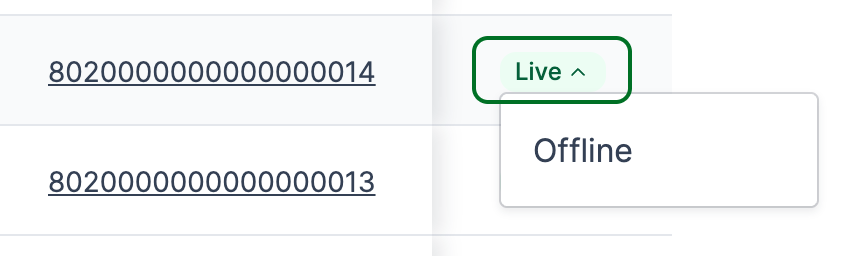
- In the SIM’s row, select its status in the SIM status column.
- Select the new status.
- If you chose Offline, select Put offline to confirm.
The same status menu is under SIM status at the top of the SIM’s details page.
Terminal sends the change to the telecom. The change takes up to 5 minutes. Until it’s done, all actions on the SIM are disabled.
Change many SIMs at once
- Go to SIMs.
- Select the checkbox next to each SIM you want to change.
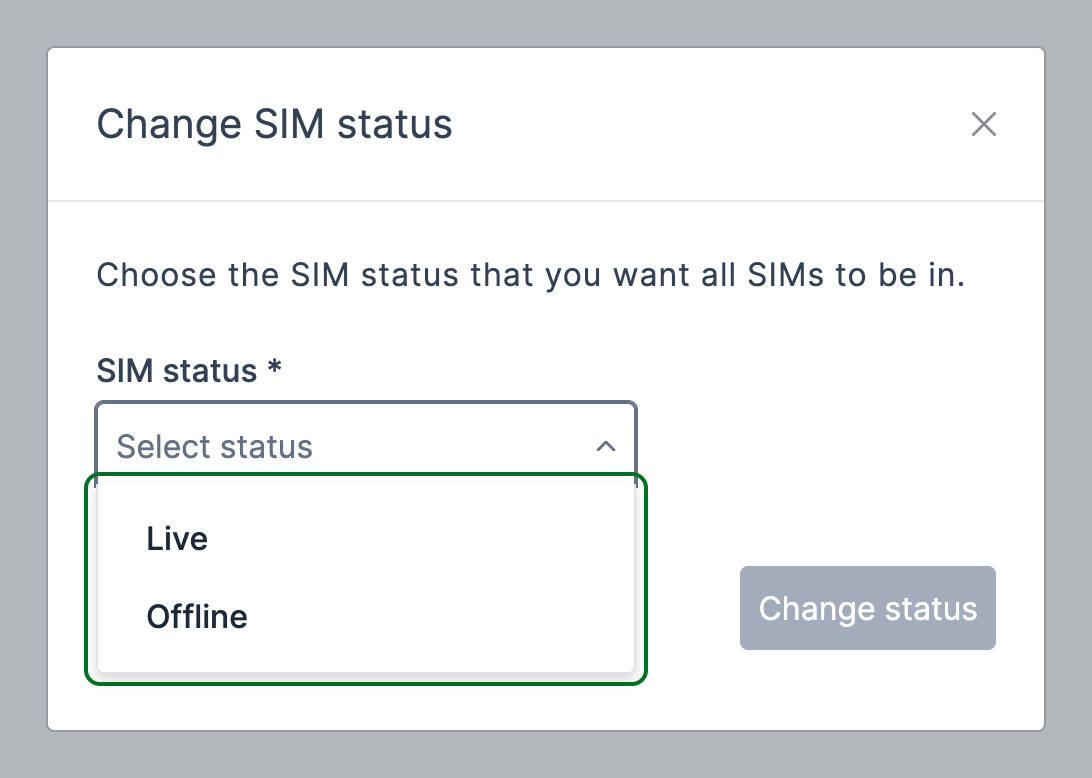
- Select Change SIM status.
- Under SIM status, choose the new status.
- Select Change status.
If some SIMs can’t change
Terminal checks every SIM before it changes anything. If some SIMs can’t move to the status you chose, Terminal lists them by reason, for example:
- The SIM has used more data this month than its data limit.
- The SIM can’t change directly from its current status to the one you chose.
- The SIM has no Test allowance left.
To change only the SIMs that can change, select Change status for [number] SIMs. To change the others, fix the reason Terminal shows first. For example, raise the data limit, then try again.
If the status you want isn’t in the menu
The menu shows only statuses that your data package offers and that the current status allows. Test is available only while the SIM is in Shipping. To close a SIM, see Close a SIM.
If a device is lost or stolen
Put the device’s SIM to Offline straight away, so nobody can use it. Offline blocks data, SMS and voice.
- Find the SIM. To search by the device, go to SIMs, choose IMEI next to the search box and enter the device’s IMEI. See Find and filter SIMs.
- Change its status to Offline, as in Change one SIM.
- Check the SIM’s recent sessions for use you don’t expect. See Check a SIM’s usage and sessions.
If the device turns up, change the SIM back to Live. If it’s gone for good, close the SIM so it stops costing a monthly fee. See Close a SIM.