Bring a SIM back online after it reached its data limit
When a SIM reaches its data limit, Terminal changes its status to Offline and the device loses its connection. You can raise the limit and put the SIM back to Live now, or wait: Terminal puts it back to Live on the first day of next month.
Before you start
- You’re a Company administrator, or an Operator with the Set data & SMS limit permission.
- To put the SIM back to Live in the same step, you also need the Change SIM status permission. Without it, Terminal raises the limit, and you or a colleague change the status afterwards.
Find the SIMs that reached their data limit
- Go to SIMs.
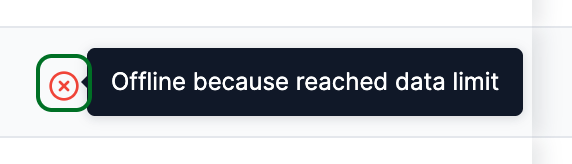
- Look for a red icon next to the ICCID. Hover over it: it says Offline because reached data limit.
To list them all, select Add filter, then under Alerts and pending actions choose Data limit reached.
Raise the limit and put the SIM back to Live
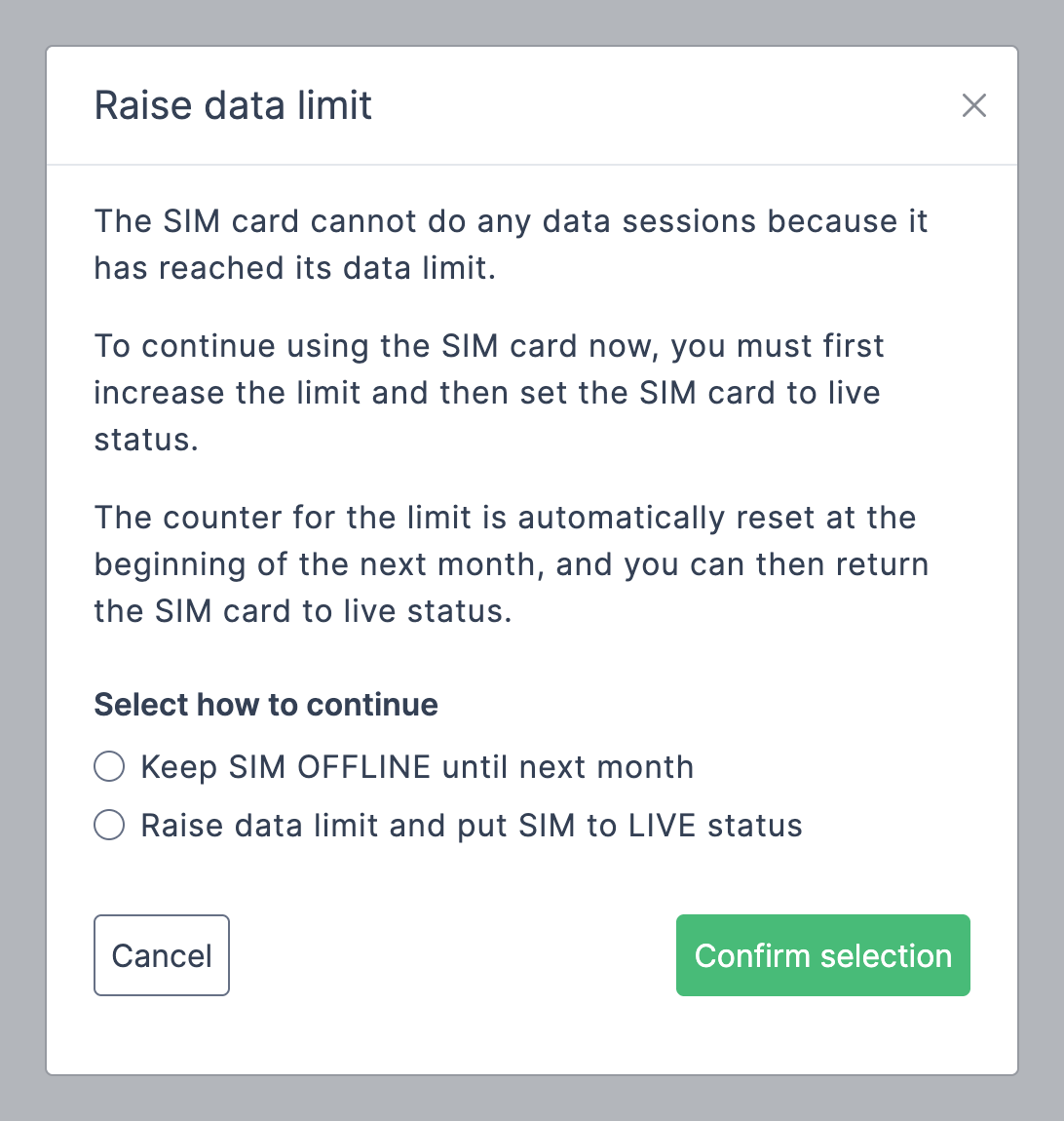
- In the SIM’s row, select Raise limit in the Data limit column.
- Select Raise data limit and put SIM to LIVE status.
- In Add a new data limit, enter a limit higher than what the SIM has used this month.
- Select Confirm selection.
Terminal saves the new limit and changes the SIM’s status to Live within 5 minutes.
Keep the SIM Offline until next month
- In the SIM’s row, select Raise limit.
- Select Keep SIM OFFLINE until next month.
- Select Confirm selection.
On the first day of next month, Terminal starts the limit counter again at zero and puts the SIM back to Live.
If the SIM reached its SMS limit
Reaching the SMS limit doesn’t take the SIM offline. The SIM stays Live and keeps its data connection, but it can’t send SMS until the limit is raised or the next month starts.
- In the SIM’s row, select Raise limit in the SMS limit column.
- Select Raise SMS limit.
- In Add a new SMS limit, enter a limit higher than the number of SMS the SIM has sent this month.
- Select Confirm selection.
The SIM can send SMS again within 5 minutes. To wait instead, select Keep the limit until next month.