See which device a SIM is in and where it is
See which device a SIM is in, by its IMEI and cellular module, and roughly where the SIM is.
Before you start
- To see the location, your company needs the Diagnostics app. Without it, Terminal shows Subscribe to Diagnostics app instead of the map. See Turn on an app in the App Store.
See the device
- Go to SIMs and select the SIM’s ICCID.
- On the Connection tab, under Recent connection, check IMEI and Cellular module.
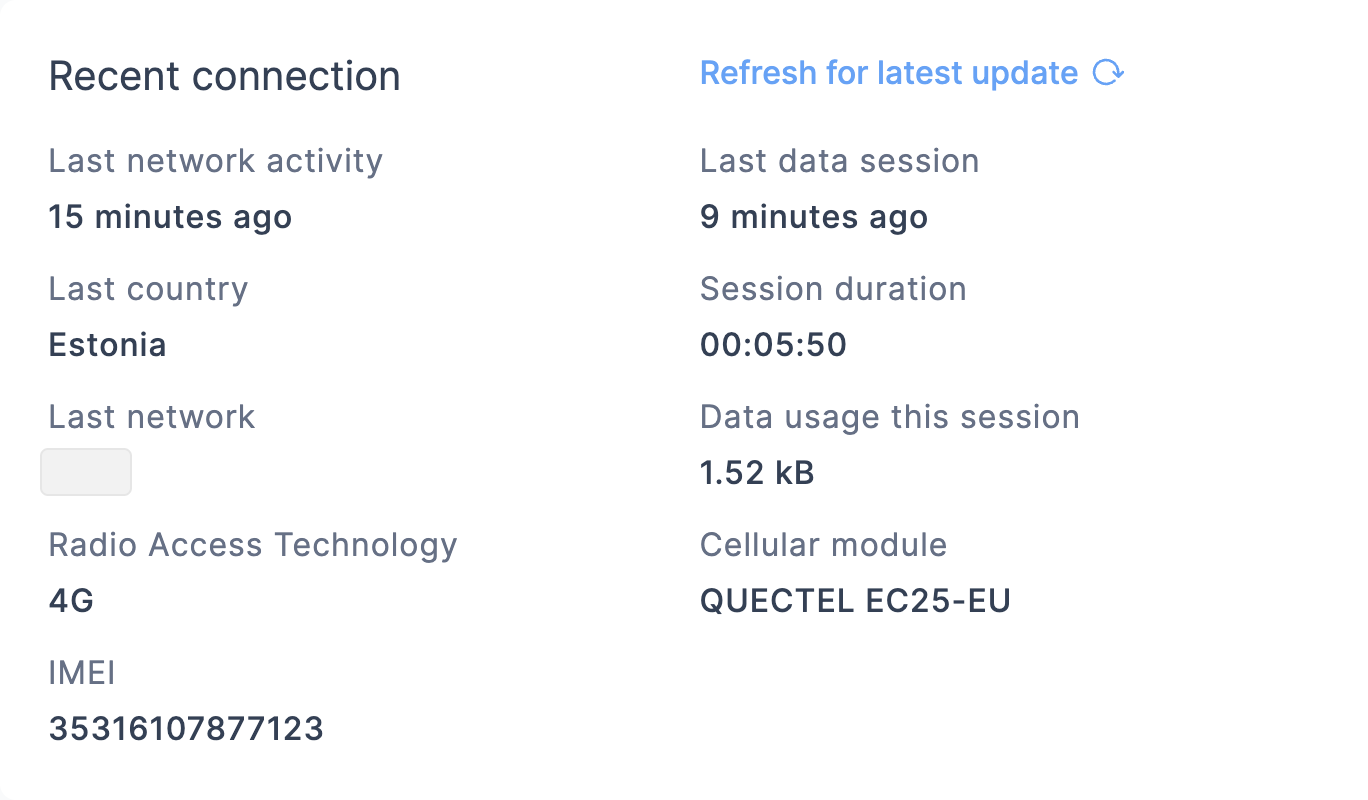
The network reports the IMEI when the SIM connects. If you moved the SIM to another device, the new IMEI shows as soon as Terminal receives the record of its next connection from the network. Terminal finds the Cellular module from the IMEI.
To find a SIM by its device, search the SIMs list by IMEI. See Find and filter SIMs.
See where the SIM is
- Go to SIMs and select the SIM’s ICCID.
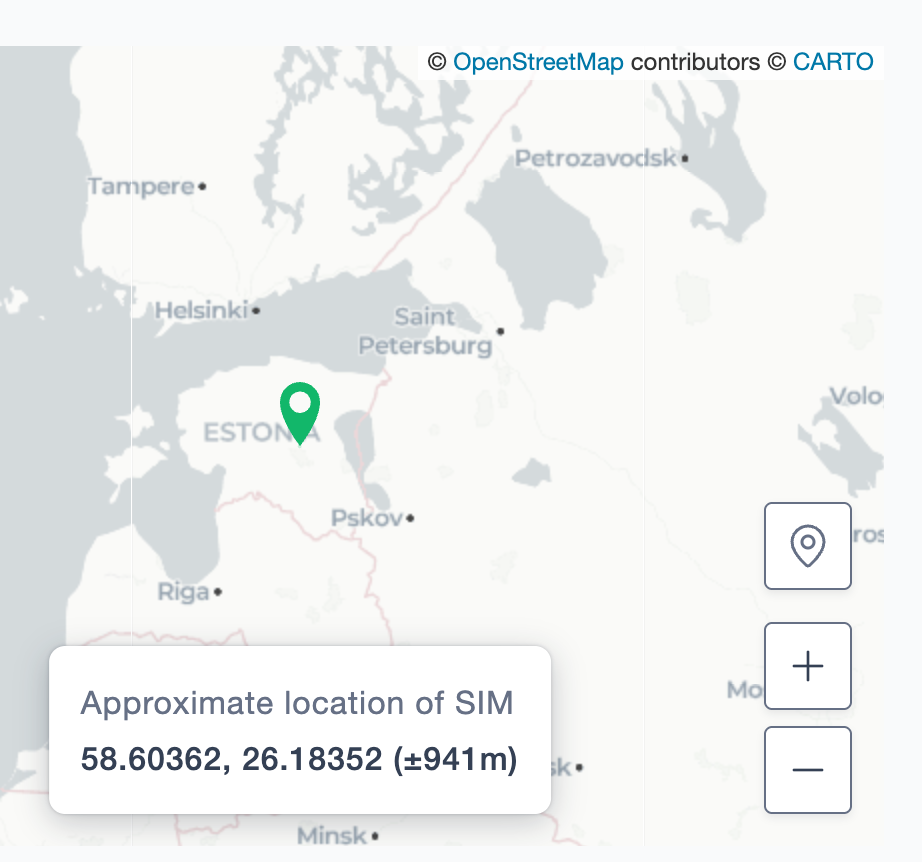
- On the Connection tab, check Approximate location of SIM.
Terminal estimates the location from the cell tower the SIM last used, not from GPS. It can be off by hundreds of metres or more. See How SIM location is estimated.
You can see location one SIM at a time. Terminal can’t export the locations of many SIMs.
If the SIM shows no location
See Find out why a SIM shows no location.
Keep the SIM in its device
To stop the SIM working in any other device, set an IMEI lock on the SIM configuration tab. The lock keeps the IMEI the SIM has when you turn it on. If the SIM then connects in a device with a different IMEI, Terminal puts it Offline. Check that the SIM is in the right device before you turn the lock on.