Add or remove a user
Invite a colleague to Terminal, or remove someone who no longer needs access.
Before you start
- You’re a Company administrator. Operators and View-only users can’t add or remove users.
Add a user
- Select your profile icon, then Settings, and open the 1oT Terminal tab.
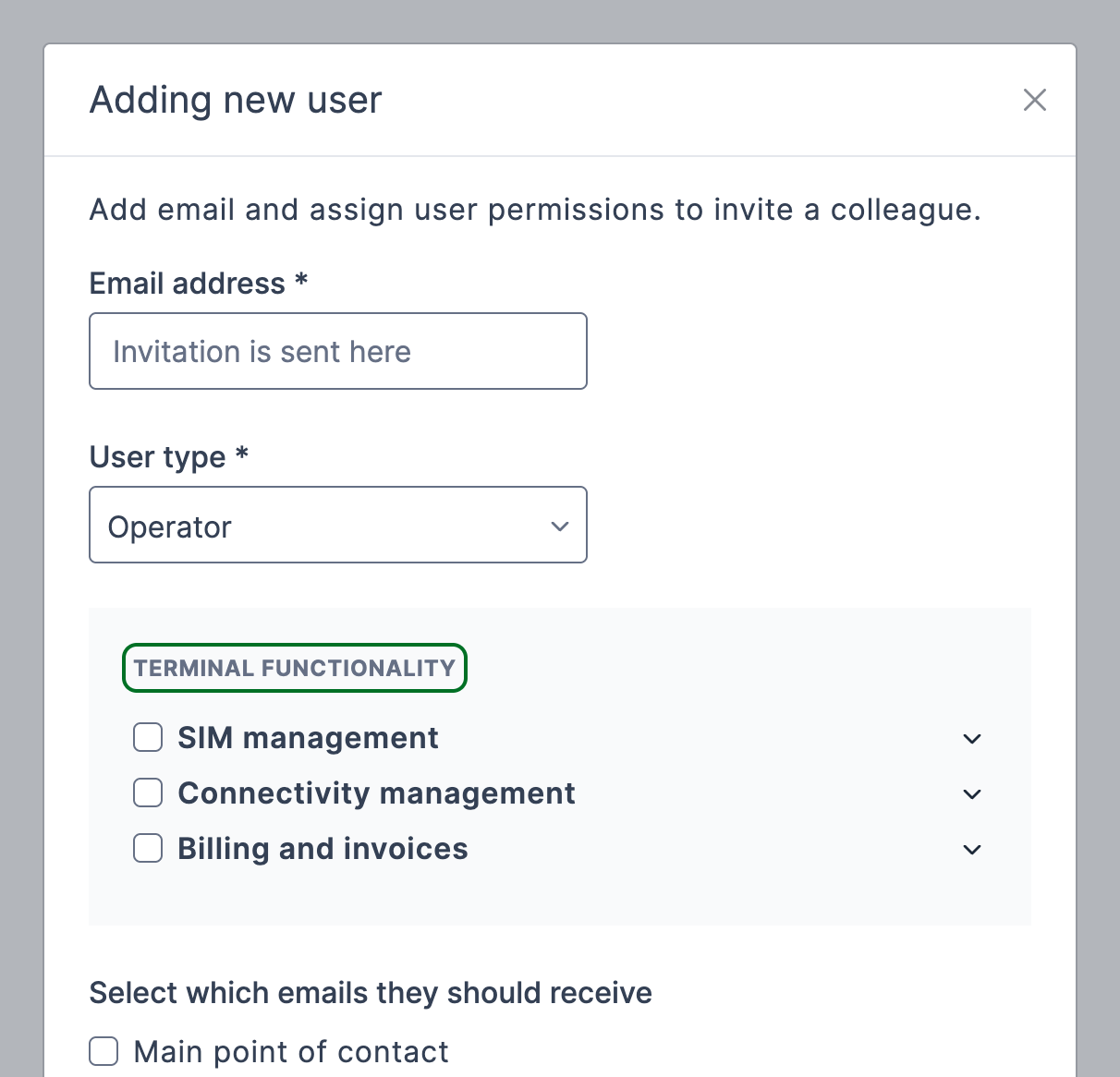
- Select Add user.
- Under Email address, enter their work email.
- Under User type, choose one:
- Company administrator: can do everything in Terminal.
- Operator: can see everything, and do only what you allow. Under Terminal functionality, choose the permissions. See Set a user’s permissions.
- View-only: can see, but not change anything.
- Under Select which emails they should receive, choose any of Main point of contact, Technical support & statements and Invoices.
- Select Send invitation.
Terminal emails them an invitation, and shows New user was successfully added. They set their password from the email. The invitation link doesn’t expire. It works until they use it.
Change a user’s type or emails
- On the 1oT Terminal tab, open the ⋯ menu on the user’s row.
- Select Edit user information.
- Change their user type, permissions or emails, and save.
Remove a user
- On the 1oT Terminal tab, open the ⋯ menu on the user’s row.
- Select Delete user.
- Confirm.
The user is signed out and can no longer sign in. Their past actions stay in the Event log. Terminal also takes their email off the company’s contact emails.
You can’t remove the Company owner.