Find and filter SIMs
Find a SIM by its ICCID, name or another number, or filter the SIMs list to the ones you need.
Find one SIM
- Go to SIMs.
- In the menu next to the search box, choose what you’re searching by: ICCID, MSISDN, EID, IMSI, Label, Group, Name, IP or IMEI.
- Type the value in the search box.
Terminal shows the matching SIMs. Select a SIM’s ICCID to open its details page.
Filter the SIMs list
- Go to SIMs.
- Select Add filter.
- Choose what to filter by, for example Status, Data package, Label or Last country.
- Choose is or is not, then pick the values.
- Select Apply Filter.
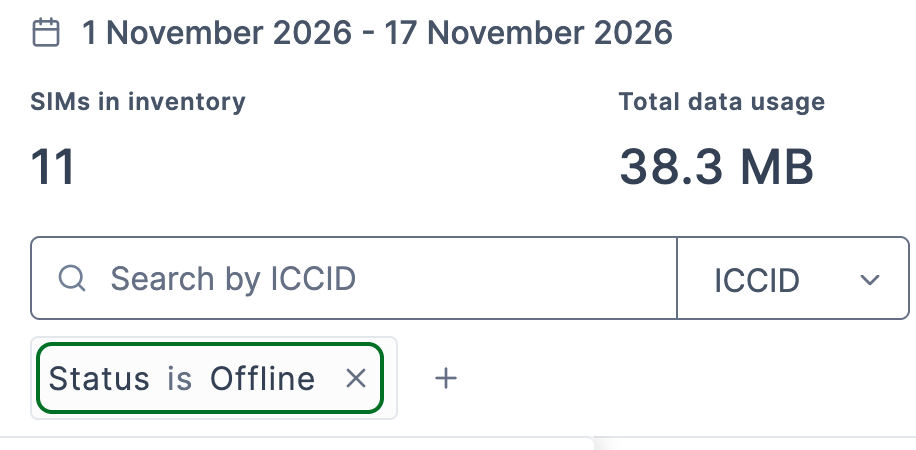
The filter appears above the table, for example Status is Offline. The totals at the top of the page, such as SIMs in inventory and Total data usage, now count only the filtered SIMs.
To add another filter, select + next to the first one. To remove a filter, select × on it.
Find many SIMs from a list
Use this when you have a list of ICCIDs, for example from a customer or a device log.
- Go to SIMs.
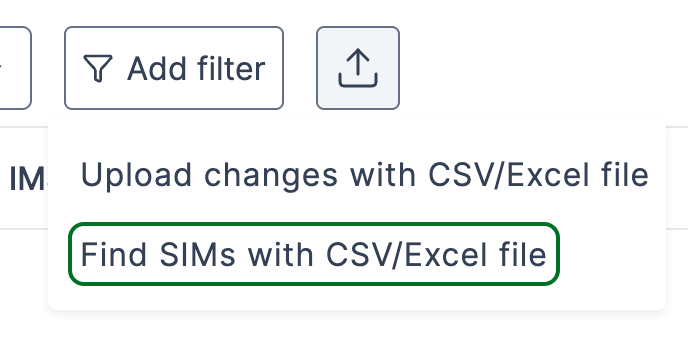
- Select the upload button next to Add filter, then Find SIMs with CSV/Excel file.
- Upload a CSV or Excel file with the SIMs’ numbers.
Terminal shows only the SIMs in your file.
Save filters as a view
If you use the same filters often, save them as a view.
- Filter the SIMs list.
- Select Save as view.
- Under Name the view, enter a name.
- Select Create view.
To open the view each time you go to SIMs, select Set as default on it.
Choose which columns you see
- Go to SIMs.
- Select the gear button above the table.
- In Modify SIMs view, choose the columns to show.
- Select Save changes.
To add a column with your own information, select Add a custom column. See Add custom fields to SIMs.