Spot unusual SIM behaviour
Find SIMs that behave differently from normal, such as a device suddenly using far more data, or a SIM that stopped working. Intelligent Connectivity checks your SIMs every day and lists what it finds.
Before you start
- Your company has the Intelligent Connectivity app. See Turn on an app in the App Store.
- To change the email settings or turn a rule on or off, you’re a Company administrator, or an Operator with the Enable Terminal apps permission.
See what Intelligent Connectivity found
- Go to Apps > Intelligent Connectivity.
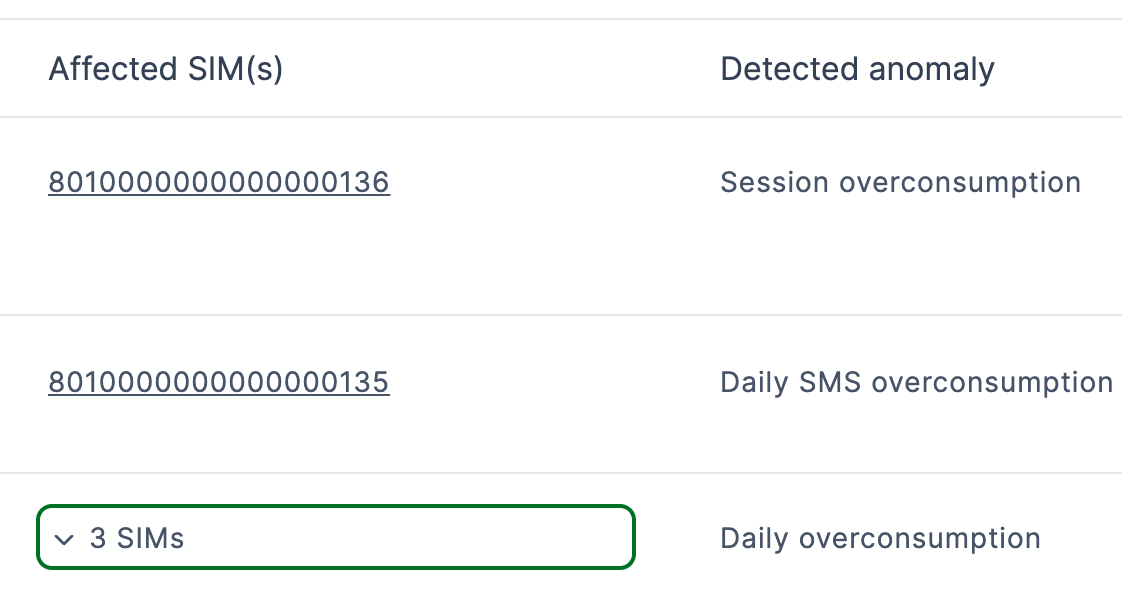
- The Anomalies tab lists each finding under Detected anomalies, with the Affected SIM(s), the Detected anomaly, a Description and the Time of issue.
A finding can cover several SIMs. Select the arrow next to it to see them. To narrow the list, select Advanced filter.
Findings also show under Alerts with the type Intelligent connectivity.
Act on a finding
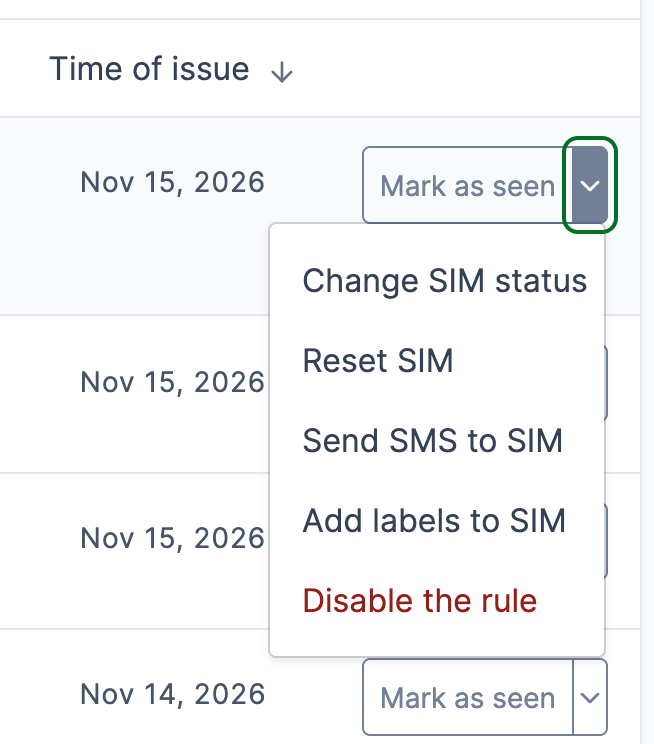
On the finding’s row, open the menu next to Mark as seen and choose:
- Mark as seen: move it to PREVIOUSLY SEEN.
- Change SIM status: change the status of the finding’s SIMs. See Change a SIM’s status.
- Reset SIM: reset the SIM’s connection. See Reset a SIM.
- Send SMS to SIM: send an SMS to the device.
- Add labels to SIM: label the SIM to follow up later.
- Disable the rule: stop looking for this kind of finding.
Changing the status, resetting, sending an SMS and adding labels open the SIMs page with the finding’s SIMs already selected, and mark the finding as seen. These four options show only when a finding covers fewer than 100 SIMs.
What Intelligent Connectivity looks for
| Rule | Finds a SIM that… |
|---|---|
| Average session length | has an average data session over 7 days at least twice as long as in the previous 4 weeks. |
| Daily overconsumption | uses more data in a day than its highest day last month. |
| Daily SMS overconsumption | sends 20% more SMS in a day than its highest day last month. |
| Data limit warning | will reach its data limit before the end of the month. |
| Inactive LIVE SIM | is Live but used no data all month. |
| Jumping between different networks | switched networks at least 10 times in a day. |
| SIM moves to new country | was used in a new country after 30 days in only one country. |
| Session overconsumption | made a data session 300% larger than its largest last month. |
| Underconsumption | used less than 10% of its highest weekly data in the last 7 days. |
| Weekly overconsumption | used more data in a week than in any of the previous 4 weeks. |
| 0-byte sessions | made at least one data session of 0 bytes in a day. See Fix sessions that show 0 or 1 byte. |
Get findings by email
- On the Settings tab, select Edit email preferences, and choose who gets the emails: Main point of contact emails, Technical contact emails or Invoice contact emails.
- For each rule, under Email notification, choose Time of detection, Once per week, Once per month or Never.
To turn a rule on or off, use its switch under Status. A rule that’s off finds nothing and sends no email.